> ## Documentation Index
> Fetch the complete documentation index at: https://docs.open-aspm.org/llms.txt
> Use this file to discover all available pages before exploring further.
# User Management and Role-Based Access Control (RBAC)
> This guide explains the user management system and role-based access control (RBAC) in the platform. Understanding these roles and their permissions is crucial for maintaining proper security and access control.
## User Roles Overview
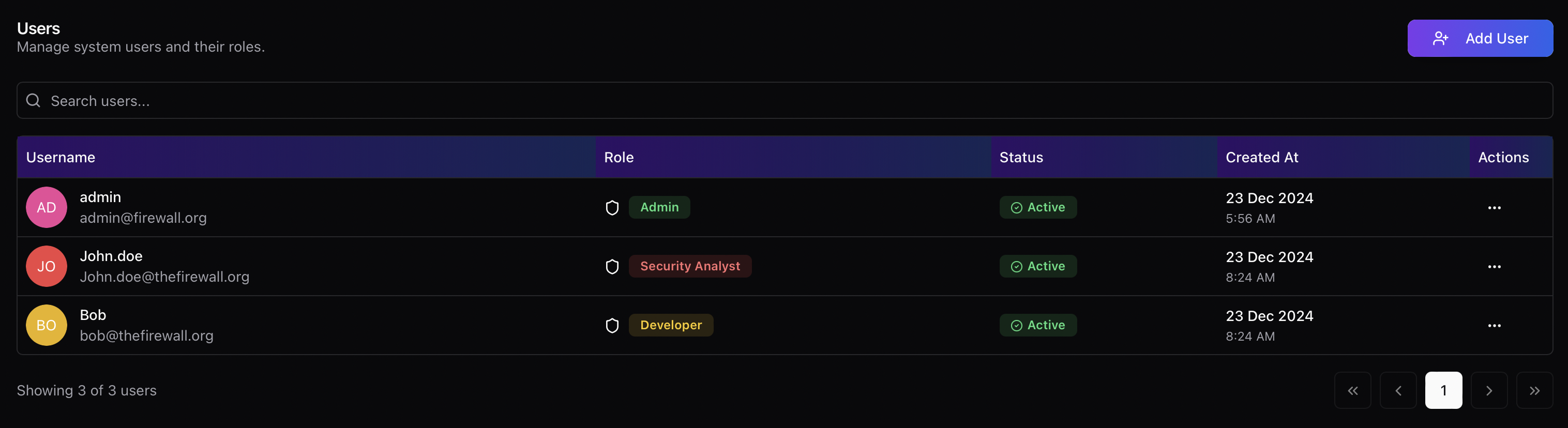 ### Administrator
**Full administrative access**
* Complete platform configuration rights
* User management capabilities
* Access to all features and settings
* Can modify system configurations
* Full read/write access across all sections
Typical responsibilities:
* Managing platform configurations
* User administration
* System setup and maintenance
* Integration management
* Alert configuration
### Security Analyst
**Full operational access without administrative rights**
* Complete read/write access to platform features
* No access to settings page
* Cannot modify system configurations
Typical responsibilities:
* Incident management
* Secret detection investigation
* Report generation
* Alert monitoring
* Security assessment
### Developer
**Read-only access**
* Can view incidents and reports
* No write permissions
* Cannot modify any platform settings
* Cannot take actions on incidents
Typical responsibilities:
* Viewing security incidents
* Monitoring repository status
* Accessing security reports
* Reviewing scan results
## Adding New Users
### Prerequisites
* Administrator role
* User details (username, email, password)
* Determined role for new user
* Intended user status
### Steps to Add a User
1. Navigate to **Settings > User Management**
2. Click the **Add User** button
3. Fill in the required information:
* Username
* Email address
* Password
* Role (Admin/Security Analyst/Dev)
* Status (Active/Inactive)
4. Click **Add** to create the user
### Administrator
**Full administrative access**
* Complete platform configuration rights
* User management capabilities
* Access to all features and settings
* Can modify system configurations
* Full read/write access across all sections
Typical responsibilities:
* Managing platform configurations
* User administration
* System setup and maintenance
* Integration management
* Alert configuration
### Security Analyst
**Full operational access without administrative rights**
* Complete read/write access to platform features
* No access to settings page
* Cannot modify system configurations
Typical responsibilities:
* Incident management
* Secret detection investigation
* Report generation
* Alert monitoring
* Security assessment
### Developer
**Read-only access**
* Can view incidents and reports
* No write permissions
* Cannot modify any platform settings
* Cannot take actions on incidents
Typical responsibilities:
* Viewing security incidents
* Monitoring repository status
* Accessing security reports
* Reviewing scan results
## Adding New Users
### Prerequisites
* Administrator role
* User details (username, email, password)
* Determined role for new user
* Intended user status
### Steps to Add a User
1. Navigate to **Settings > User Management**
2. Click the **Add User** button
3. Fill in the required information:
* Username
* Email address
* Password
* Role (Admin/Security Analyst/Dev)
* Status (Active/Inactive)
4. Click **Add** to create the user ### Important Considerations
* Choose roles based on user responsibilities
* Use strong passwords
* Verify email addresses
* Set appropriate status
* Review access requirements regularly
## Best Practices
### User Management
* Regularly audit user accounts
* Remove inactive users promptly
* Update roles as responsibilities change
* Enforce strong password policies
* Review access logs periodically
### Role Assignment
* Follow the principle of least privilege
* Assign roles based on job requirements
* Regularly review role assignments
* Document role changes
* Maintain user role inventory
## Security Recommendations
1. Regular Access Review
* Audit user accounts quarterly
* Verify role assignments
* Update permissions as needed
* Remove unnecessary access
2. User Onboarding
* Verify user identity
* Provide role-specific training
* Document access granted
* Set up monitoring
3. User Offboarding
* Promptly disable accounts
* Remove access rights
* Archive user data
* Document removal
## Troubleshooting
Common Issues:
* Unable to access certain features
* Verify user role
* Check account status
* Clear browser cache
* Login problems
* Reset password
* Verify email
* Check account status
Need assistance? Contact your system administrator or support team for help.
### Important Considerations
* Choose roles based on user responsibilities
* Use strong passwords
* Verify email addresses
* Set appropriate status
* Review access requirements regularly
## Best Practices
### User Management
* Regularly audit user accounts
* Remove inactive users promptly
* Update roles as responsibilities change
* Enforce strong password policies
* Review access logs periodically
### Role Assignment
* Follow the principle of least privilege
* Assign roles based on job requirements
* Regularly review role assignments
* Document role changes
* Maintain user role inventory
## Security Recommendations
1. Regular Access Review
* Audit user accounts quarterly
* Verify role assignments
* Update permissions as needed
* Remove unnecessary access
2. User Onboarding
* Verify user identity
* Provide role-specific training
* Document access granted
* Set up monitoring
3. User Offboarding
* Promptly disable accounts
* Remove access rights
* Archive user data
* Document removal
## Troubleshooting
Common Issues:
* Unable to access certain features
* Verify user role
* Check account status
* Clear browser cache
* Login problems
* Reset password
* Verify email
* Check account status
Need assistance? Contact your system administrator or support team for help.